A replacement computer can turn a working USB dental X-ray sensor into an unresolved project. The connector still fits, but the old driver, imaging application, activation arrangement or image archive may not transfer as the clinic expected. Retiring the original workstation before these dependencies are checked removes a useful reference and can make recovery harder.
This guide is for clinic owners, procurement teams and IT coordinators replacing a workstation while retaining an existing sensor. It is not a first-installation tutorial. The sensor setup and IT handover guide covers initial deployment; the decision here is how to move from a known working environment to a verified replacement without losing the recovery route.
Keep the accepted setup available until the change is approved
Before scheduling the replacement, identify the person who owns the change and the parties responsible for the sensor, imaging application, clinic IT and records. Ask each party what it needs to confirm. A hardware supplier may answer sensor questions without administering the clinic’s database or owning the application licence.
Record the old workstation’s accepted configuration before it is altered. Include the sensor model and identifier, operating-system version, driver reference, imaging-software version, connection arrangement and storage location. Separate confirmed information from assumptions. A model name written on an invoice is not a complete software inventory.
Do not dispose of or wipe the old computer as an ordinary purchasing step while the transition is unresolved. The clinic’s authorized IT and data owners should decide how long a recovery option must remain available and how the retired device will eventually be handled. This article does not prescribe a retention period.
Ask for compatibility evidence tied to the replacement
Send the supplier the exact sensor reference and the proposed workstation environment. Ask for the currently supported installation package, operating-system requirements, required permissions and any connection restrictions. Do not assume that a newer computer or operating system is supported simply because it meets a general performance specification.
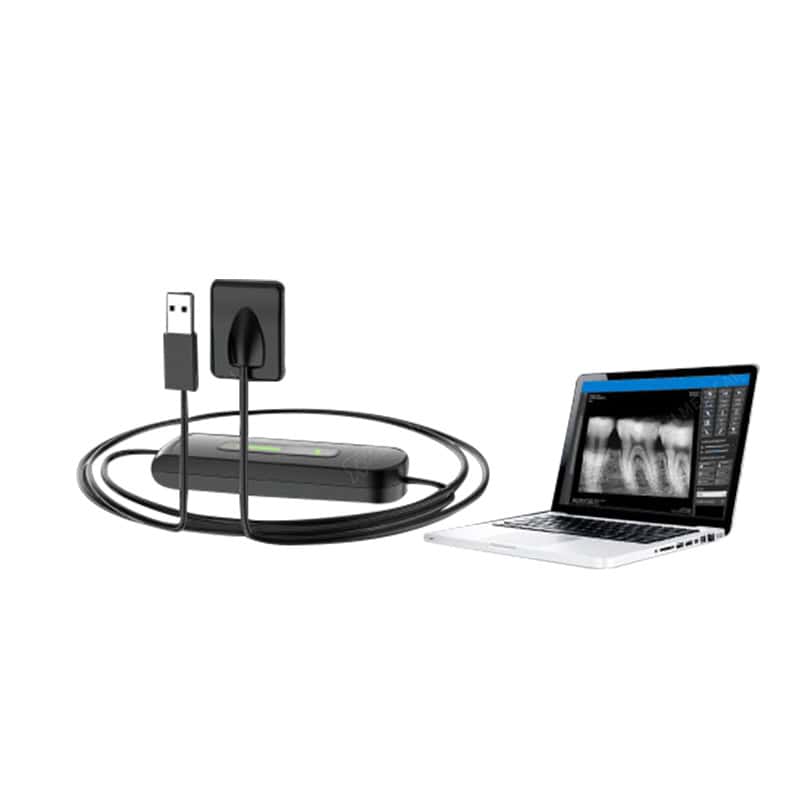
Use the RIXI USB sensor product page to identify the equipment family, then obtain documentation applicable to the installed unit. A later catalogue version may not describe a sensor already in service. The supplier should clarify any version or identifier needed to answer accurately.
| Dependency | Question before replacement | Evidence owner |
|---|---|---|
| Sensor and driver | Does the supplier support this exact unit on the proposed system? | Sensor supplier or authorized technical provider |
| Imaging application | Which version and integration method will be used? | Application provider and clinic IT |
| Activation | What transfer or reactivation process applies to this licence? | Legitimate licence owner and software provider |
| Stored records | Where is the authoritative archive, and how will access be verified? | Clinic data owner and authorized IT team |
| Connection hardware | Is the proposed port, adapter or intermediate device supported? | Relevant supplier and local integrator |
Keep an unanswered question open. A successful installation on a distributor’s demonstration computer does not settle the compatibility of the clinic’s replacement configuration.
Resolve activation without sharing secrets in the order file
Ask the application provider whether the existing entitlement can move to another computer, what authorization is needed and whether any additional fee or service applies. Licence terms vary; this guide does not promise transfer rights, free reactivation or a particular number of installations.
Identify the organization’s legitimate account owner and recovery contact. Record the reference needed to request support, not passwords, activation secrets or administrator credentials. Any access needed by a support provider should follow the clinic’s approved authorization process. Do not use copied installers or unofficial activation tools to make an unsupported configuration appear ready.
Protect archive access as a separate workstream
The sensor connection and the image archive are different dependencies. Ask the authorized IT team to identify the working archive, backup arrangements, associated database and any application settings required to interpret the stored files. Copying a visible folder may not capture the complete system.
Have the responsible team plan and verify recovery using the supported tools and approved storage destination. A message saying “backup done” should identify what was protected, by whom and what verification was performed. Keep backup administration within the clinic’s controlled environment rather than sending its records to an equipment supplier.
The broader dental equipment data-handover checklist explains how to document data paths and responsibilities. For a workstation replacement, use that record to compare old and new paths; do not assume that a newly selected default folder is the existing archive.
Agree acceptance evidence before the cutover
Define what the responsible reviewers need to see on the replacement computer. Relevant administrative checks include the expected application and driver versions, recognition of the correct device, authorized account access, retrieval of appropriate test records and the supported save or export path. Clinical suitability and imaging-quality assessment remain with qualified professionals.
Use approved non-sensitive representative data for procurement and IT checks. Do not create additional patient exposures merely to demonstrate a computer replacement. Where clinical or technical checks are required, the appropriate qualified parties must determine the permitted method and acceptance criteria.
Record failures as observations: an application cannot open an approved test record, a device is not recognized, or an export reaches the wrong destination. The sensor fault-report checklist helps route those observations without guessing that the retained sensor has failed.
Make the go-live and rollback decisions explicit
Name the person who accepts the replacement for the clinic and list unresolved conditions. Supplier acknowledgement, IT installation and clinical authorization are not interchangeable approvals. Do not mark the transition complete simply because a device appears in a computer’s connected-hardware list.
Agree the recovery route before the change window: who can restore the accepted environment, where the required information is held and what conditions would trigger that decision. Reconnection, restoration and any further technical work should follow the supported procedures and clinic authorization. Avoid changing both old and new environments until neither remains a reliable baseline.
After acceptance, update the equipment register with the new workstation, applicable software, connection arrangement and support contacts. Keep the previous configuration identifiable for later review. Retirement and data disposal should then follow the clinic’s approved process, not an informal instruction from the purchasing desk.
Buyer questions
Will the same USB plug guarantee that the sensor works?
No. Drivers, supported systems, application integration and activation can also determine compatibility. Obtain model-specific confirmation.
Should the old workstation be wiped before installation?
Not as a default purchasing action. The authorized IT and data owners should first establish acceptance, recovery and retirement arrangements.
Is a copied image folder enough to verify the migration?
Not necessarily. The application may depend on a database, settings or other supported components. Ask the responsible provider to define and verify the complete scope.
Who approves the replacement for clinical use?
The clinic’s appropriate qualified decision makers must approve their respective scopes. Supplier support and IT checks do not replace that responsibility.
Scope: General change-planning and procurement guidance, not installation, clinical, data-recovery or cybersecurity instructions. Confirm model requirements with the supplier and use qualified local professionals.
RIXI Medical is a dental equipment manufacturer and supplier in Foshan, China. Use the technical support contact route and request a model-specific workstation compatibility review with the existing configuration, proposed replacement and unresolved questions.
Need Dental Equipment Pricing or Configuration Details?
Contact RIXI Medical for model comparison, distributor pricing, packaging information, OEM/ODM requirements and after-sales support.
Request Product Information